AI Declutter: Remove Clutter From Room Photos Free (2027)
Article Contents
- What is AI declutter?
- Three ways to declutter a room photo
- How to declutter a room photo with AI
- Which intensity should you choose?
- Prepare your photo for a better result
- What to remove and what to keep
- Declutter first, then stage
- Disclosure and the rules
- Room-by-room tips
- Common mistakes
- It is not only for listings.
- The bottom line
AI Declutter: Remove Clutter From Room Photos for Free
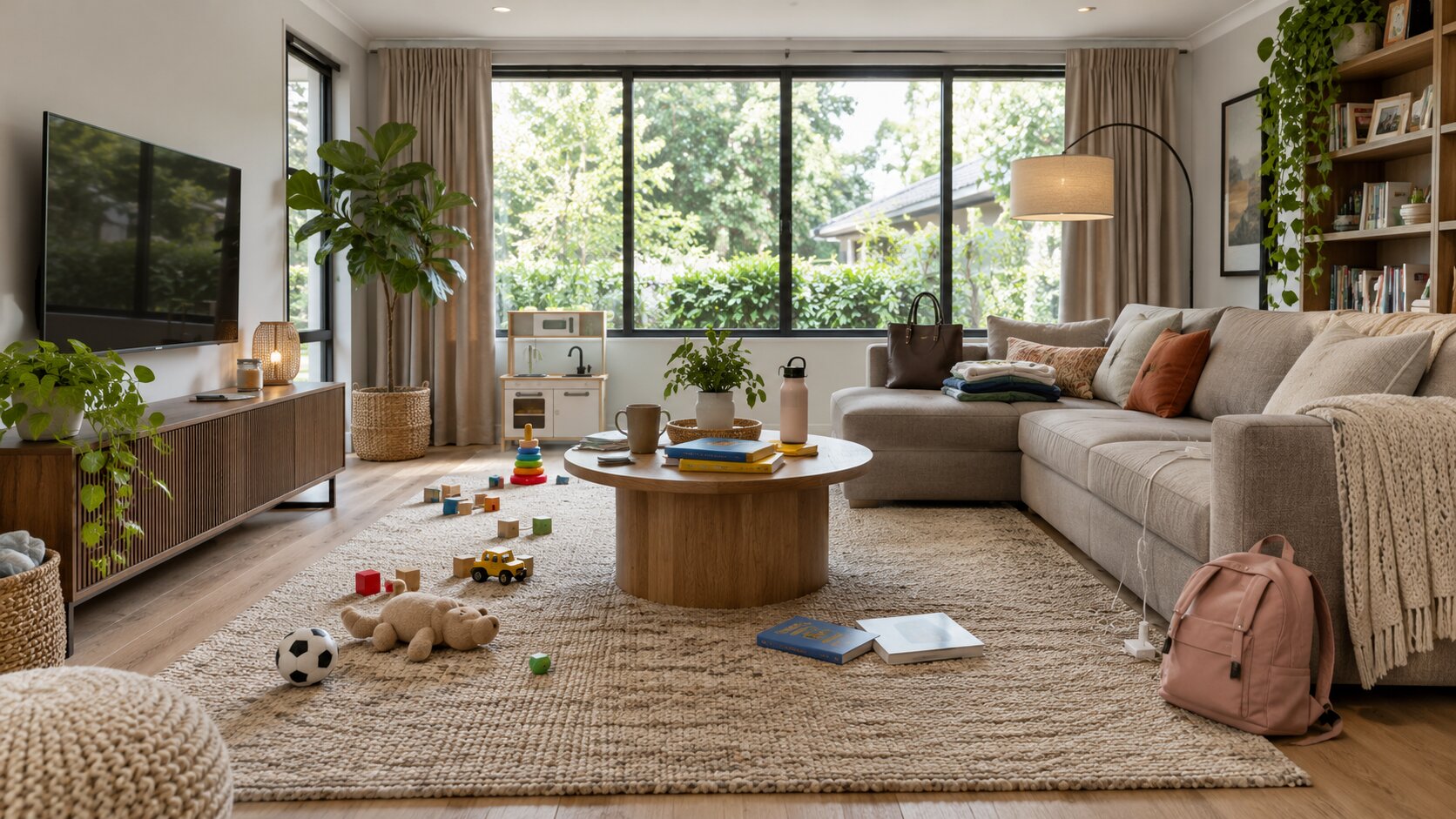
Quick answer: AI declutter removes loose clutter, such as cords, toys, laundry, countertop appliances and personal items, from a room photo in under a minute, while leaving the walls, floors, fixtures, and real condition of the room untouched. The easiest way to try it is our free virtual declutter tool: free accounts get 1 declutter per day (watermarked), and paid plans give clean full-resolution downloads. If the room will be empty afterward, follow up with virtual staging.
Related tool: check your whole photo set before you publish with the listing photo analyzer.
Tool limits and prices change. Check the current plan details on the pricing page before you rely on them.
What is AI declutter?
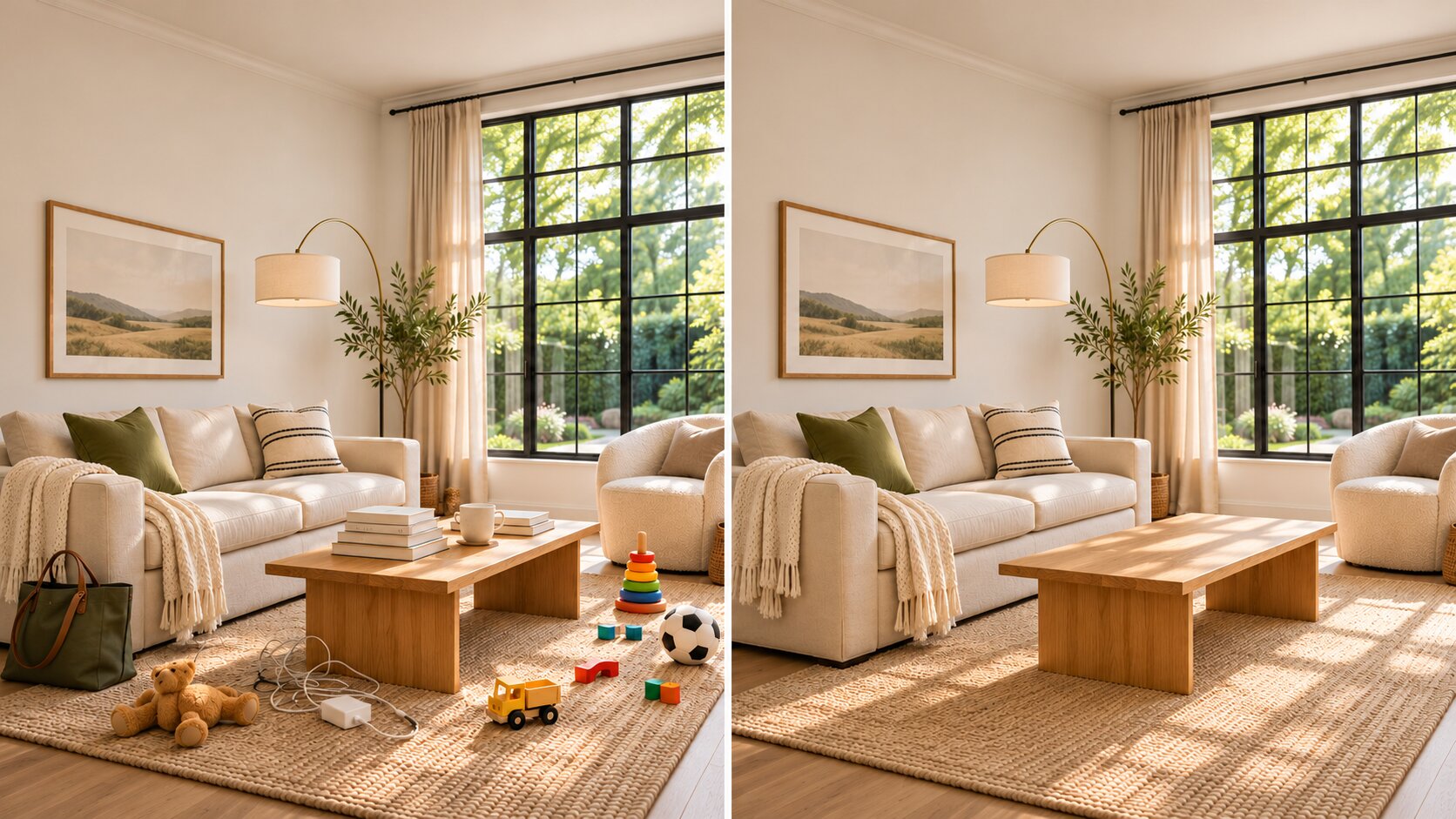
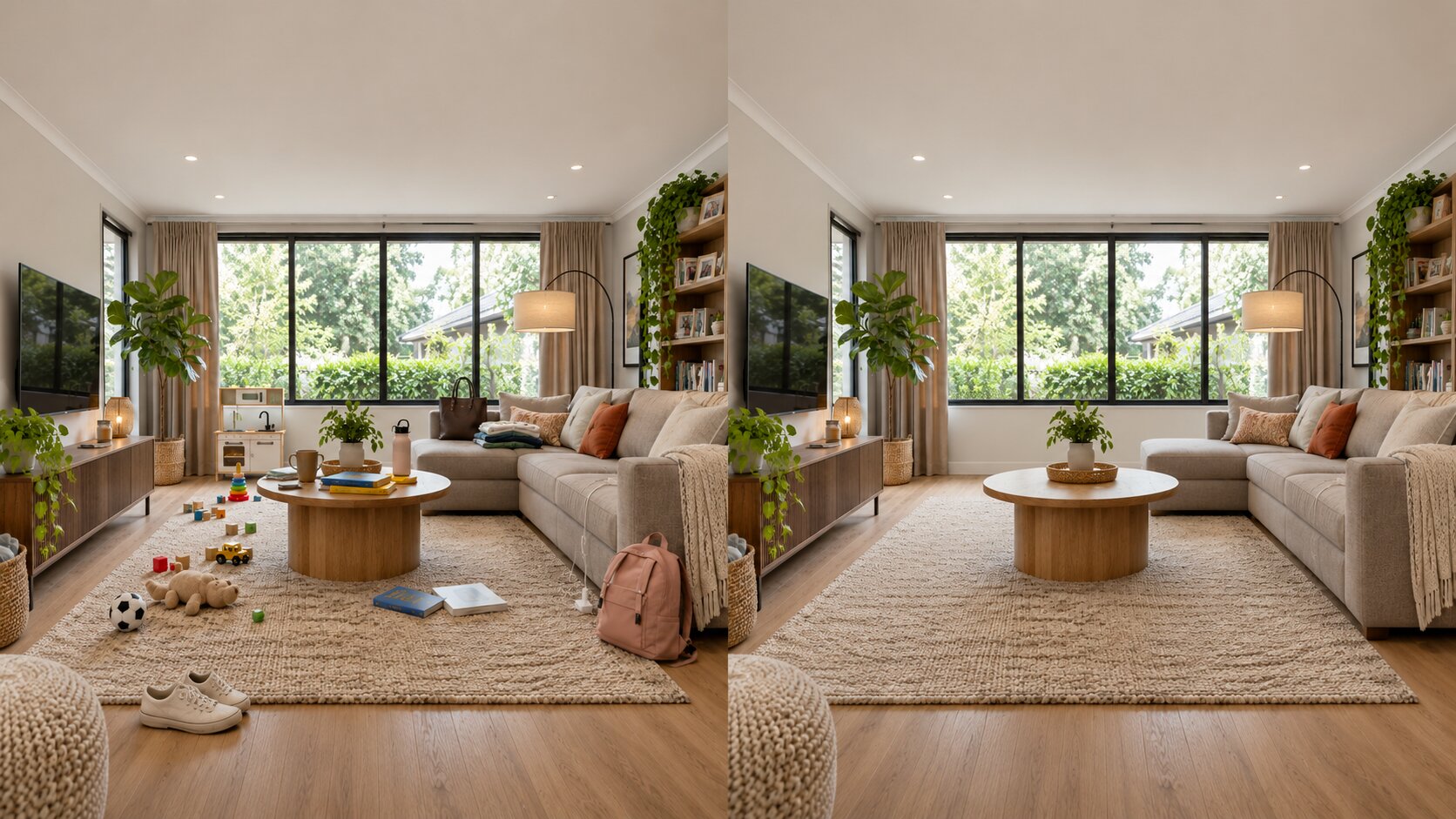
AI declutter (also called virtual decluttering) is a photo edit that digitally removes movable items from a picture of a room. The AI erases the clutter and rebuilds the surfaces underneath, such as the countertop, floor, or wall behind it, so the room looks tidy.
The key word is movable. A good declutter changes what you could physically pick up and carry away. It does not change the building.
AI declutter should remove | AI declutter should leave alone |
|---|---|
Toys, laundry, shoes and bags | Walls, floors and ceilings |
Cords and cables | Built-in cabinets and shelving |
Family photos and personal items | Windows, doors and fixtures |
Countertop appliances and bottles | Stains, cracks, scuffs and wear |
Papers, mail and loose decor | The view and the surroundings |
That last column matters. Removing a toy bin is tidying. Removing a damp patch or a cracked tile is misrepresenting the home.
Three ways to declutter a room photo
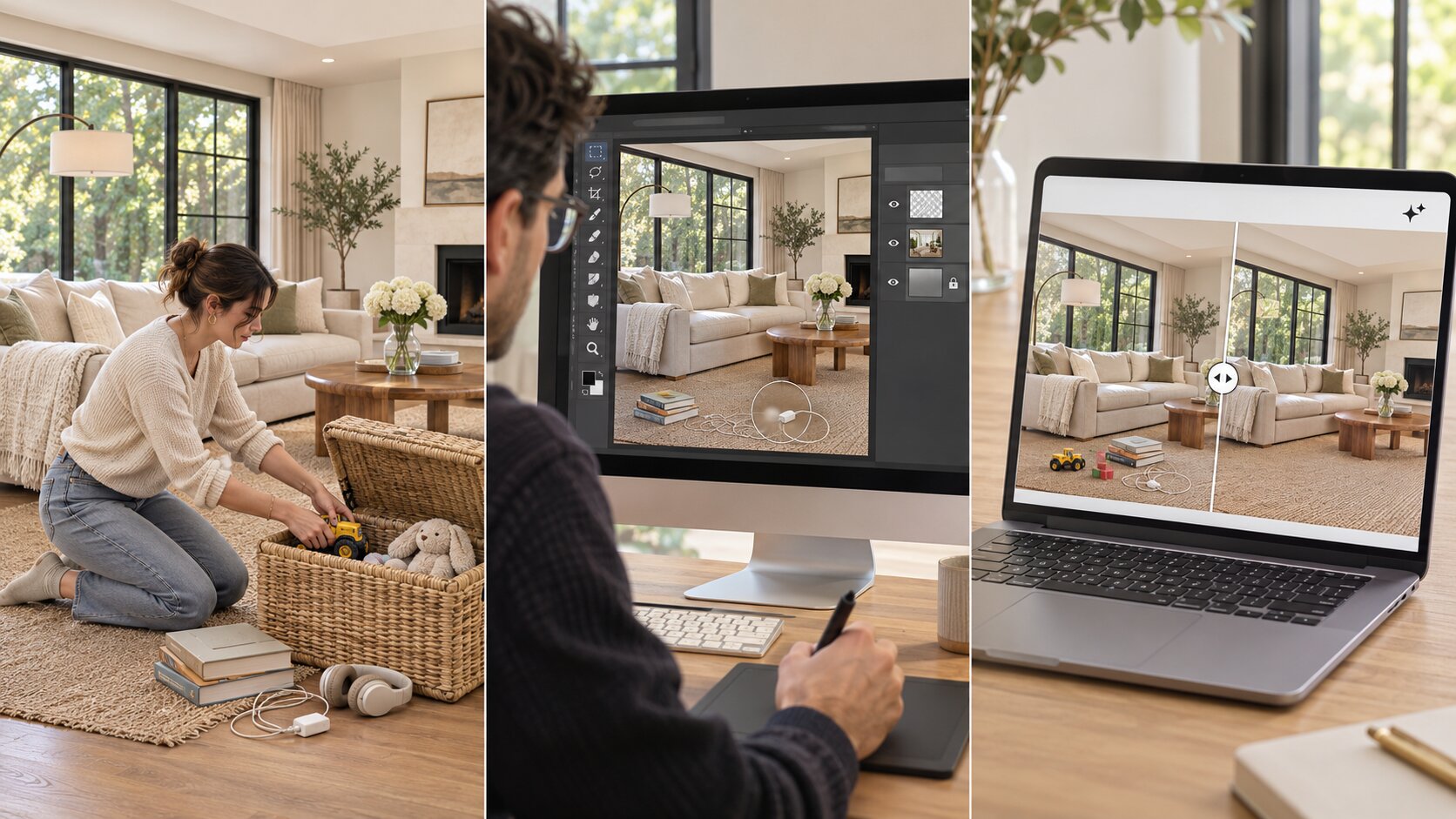
Physical clear-out | Manual photo editing | AI declutter | |
|---|---|---|---|
How it works | You move everything out and reshoot | An editor paints items out in Photoshop or similar | You upload a photo, and the AI removes the clutter |
Time | Hours to days | Often 15 to 60 minutes per photo | Under a minute for most runs |
Cost | Your time, storage, or junk removal | Your time or a paid editor | Free to try, then credits |
Skill needed | None | High | None |
Best for | Empty or ready-to-sell homes | Small fixes and polished results | Occupied homes and quick fixes |
Physically clearing the room is always the most honest option when you have the time. AI declutter fills the gap when you can't: the home is occupied, the photographer is booked, or the listing needs to go live now.
How to declutter a room photo with AI
Upload a clear photo of the room to the virtual declutter tool. Daylight helps the AI rebuild the surfaces under what it removes.
Pick an intensity (see the next section).
Add keep and remove notes if you want. For example, remove the family photos and cords, but keep the curtains and rug.
Generate the result. Most runs take 20 to 60 seconds.
Download with the disclosure. Exports carry a note that the photo was digitally decluttered. Keep it with the image when you publish.
Stage it next if the room is now empty. Open virtual staging from the result to add furniture.
Which intensity should you choose?
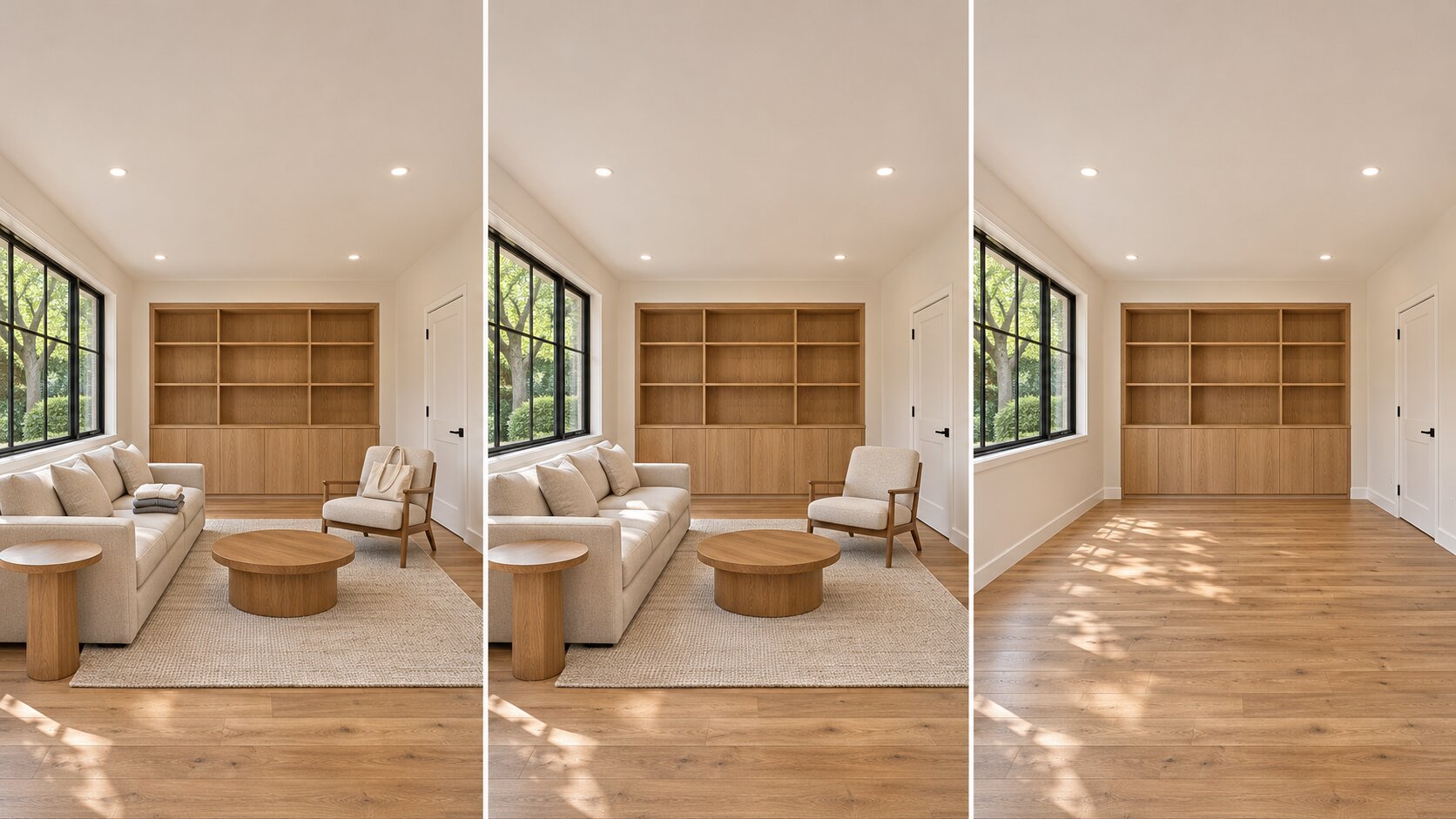
The tool offers three levels. Pick the one that matches what the photo is for.
Intensity | What it does | Use it when |
|---|---|---|
Light tidy | Clears surfaces and small loose items, keeps the room furnished | The room looks lived-in and just needs polish |
Full declutter | Removes clutter and personal items, keeps the main furniture | Most occupied listings |
Empty the room | Removes furniture and objects for a vacant look | You plan to stage the room next |
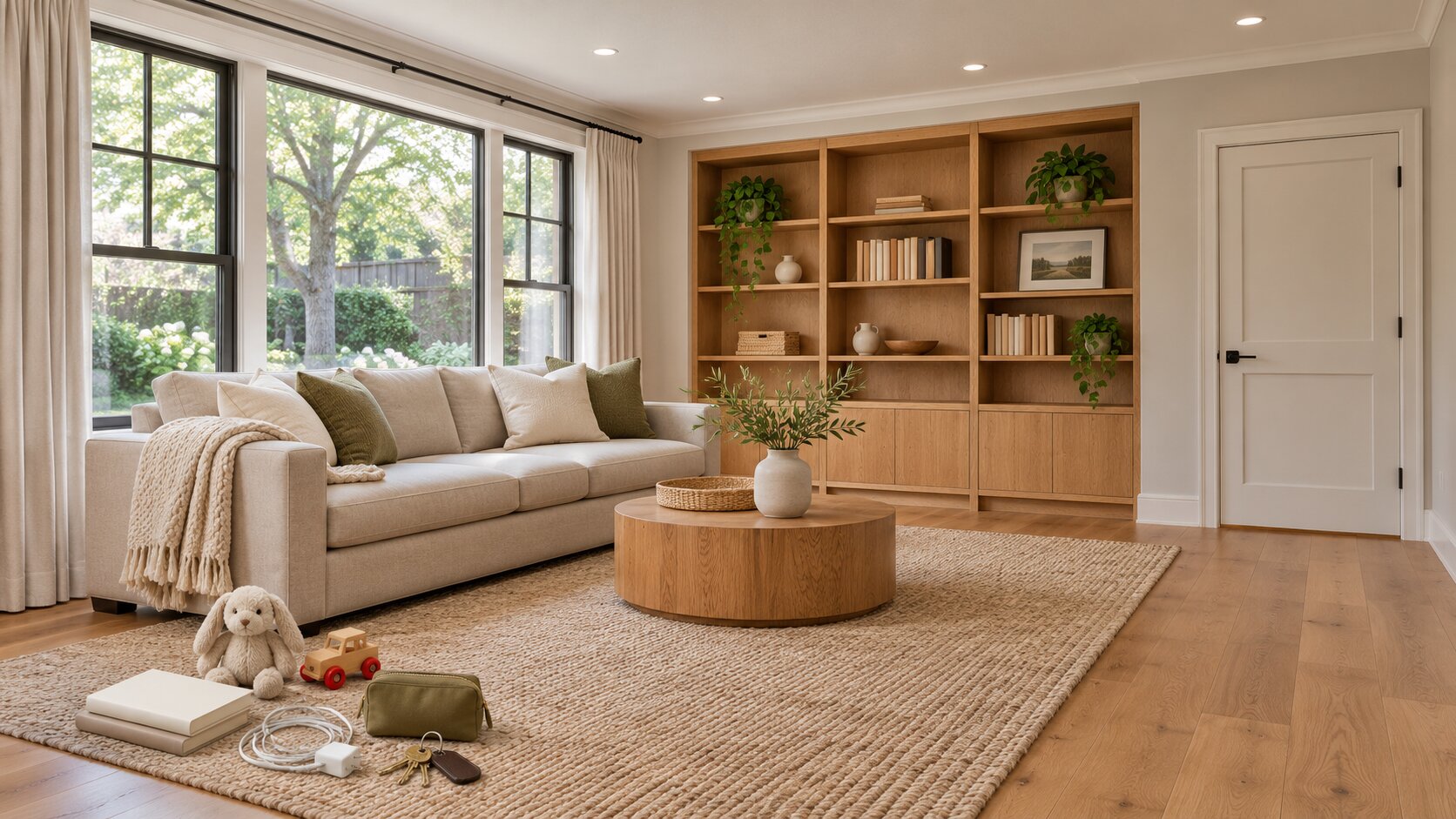
A tip that saves a redo: if you intend to stage afterward, choose Empty the room. Full declutter leaves the sofa and bed in place, and the staging step then has to work around them.
If you want to keep soft items like curtains or a rug even in empty mode, say so in the keep notes.
Prepare your photo for a better result
The AI works best when the original photo is clean and clear.
Shoot in soft daylight. Turn on the lights too, but avoid harsh glare.
Keep the camera level and capture the whole room from a corner or doorway.
Pick a sharp photo. Blurry images give blurry rebuilt areas.
Remove the big stuff first. If you can physically clear the large items, do that and let the AI handle the small leftovers.
Avoid heavy shadows across cluttered areas, which make the AI's job harder.
Shoot each room more than once from different angles, so you have a backup if one result looks off.
What to remove and what to keep
Use this checklist when you write your notes.
Remove: family photos, kids' items, laundry, cords, toiletries, cleaning products, magnets and papers on the fridge, small appliances, pet bowls, and loose mail.
Keep: curtains, rugs, art and mirrors if they help the room look finished, plus anything that is permanently part of the home.
Never ask the tool to: clean stains, repair cracks, hide damage, change the view, or make the room look bigger. Publish the real condition of the property with a tidy room, not a perfect one.
Declutter first, then stage
A common workflow for empty or lived-in listings is declutter, then stage, then publish:
Declutter the room with the Empty Room setting.
Add furniture with virtual staging.
Label the photos as digitally altered.
Keep the original photos in the gallery as well.
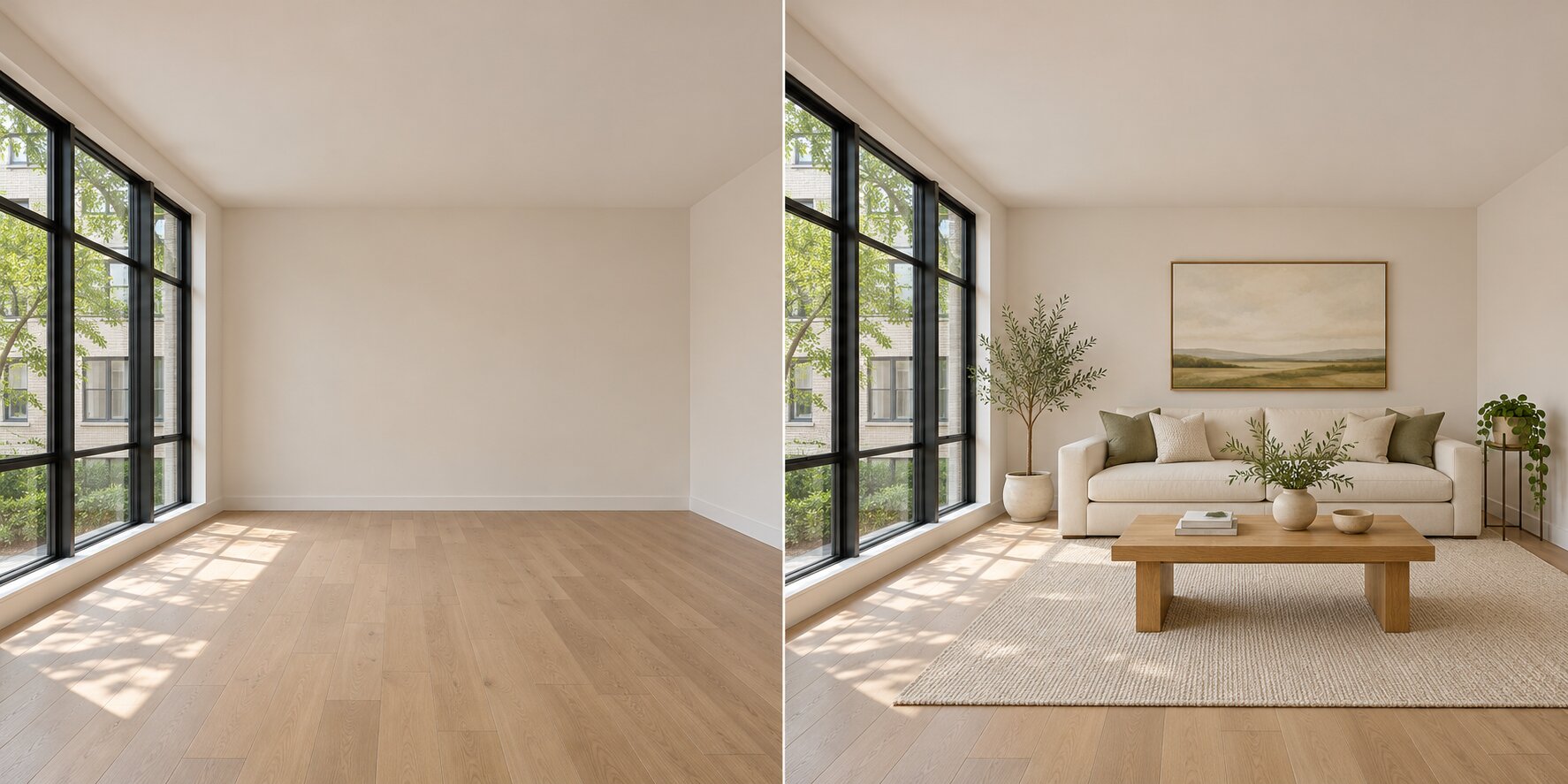
If you are weighing options, read our guides on virtual staging cost vs physical staging and the best AI virtual staging apps for realtors. For the outside of the house, a day-to-dusk edit makes a good extra hero image.
Disclosure and the rules
Removing clutter is a digital edit, and many MLS boards, brokerages, and state rules expect you to disclose digitally altered listing photos. Requirements differ by place and change over time, so check your local MLS and regulations.
A safe approach:
Label the image, for example, "Digitally decluttered photo."
Keep the original photo available.
Remove only movable items, never defects or fixtures.
Don't use it to hide something a buyer would care about.
HouseGPTs attaches a disclosure to each export. Keep it with the image when you publish.
Room-by-room tips
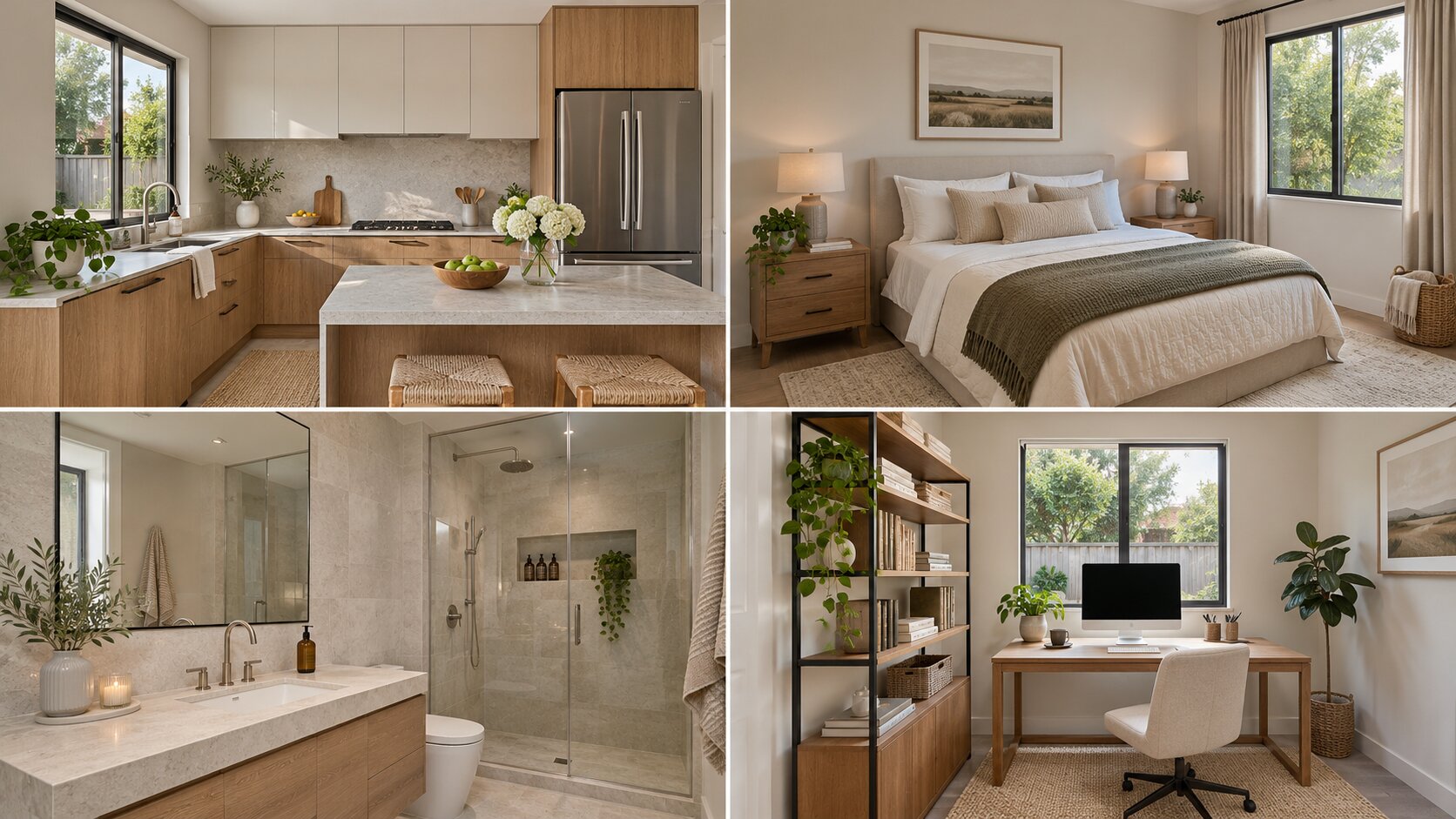
Kitchens. Clear the counters of small appliances, bottles, dish racks, and fridge magnets. Keep the cabinets, appliances that are built in, and the real finishes.
Bedrooms. Remove laundry, bedside clutter, and chargers. Keep the bed unless you plan to stage, and straighten the bedding before you shoot, since fabric wrinkles are hard to fix.
Living rooms. Clear toys, cables, remotes, and loose decor. Leave the main furniture in place unless you are staging.
Bathrooms. Remove toiletries, towels, and cleaning products from view. Keep the fixtures and the tile and grout in their real condition.
Home offices. Hide cords, paper piles, and personal documents.
Common mistakes
Choosing full decluttering and then staging. Use Empty the room if staging comes next.
Asking the AI to fix defects. That moves from tidying to misrepresentation.
Uploading a dark or blurry photo. The results will be weaker.
Skipping the disclosure. Label every edited photo.
Over-editing. If a room looks too perfect to be real, buyers notice.
Not checking the result. Zoom in on edges, shadows, and floors and regenerate if anything looks off.
Using AI when you could just move the pile. A quick physical tidy often gives the best result.
It is not only for listings.
Outside real estate, decluttering a photo is a useful first step when you are planning a redesign. A cleaner picture helps AI design tools read the room properly. Try decluttering first, then use the AI interior designer to test new styles on a tidy version of the same room, or the AI kitchen designer for a cluttered kitchen.
The bottom line
AI declutter is a fast, low-cost way to get cleaner room photos when you can't clear the room yourself. Shoot a clear photo, choose the right intensity, remove only movable items, label the result, and keep the original. Ready to try? Upload a photo to the free virtual declutter tool, or follow up with virtual staging if the room is now empty.
Ready for Your Own AI Redesign?
Start Designing with AI →FAQs about AI Declutter: Remove Clutter From Room Photos Free (2027)
Everything you need to know
What is AI declutter?
It is a photo tool that removes movable clutter from a picture of a room and rebuilds the surfaces underneath, so the room looks tidy.
Can I remove clutter from a photo for free?
Yes. HouseGPTs gives free accounts one declutter run per day, with a watermark. Paid plans use credits and give clean, full-resolution downloads.
What is virtual decluttering?
It means the same as AI declutter: removing clutter from a photo digitally rather than clearing the room physically.
Does AI declutter hide damage?
It should not. A good tool keeps cracks, stains, scuffs, and dated fixtures exactly as photographed. Only movable items are removed.
What is the difference between declutter and virtual staging?
Declutter removes things from a room. Staging adds furniture and decor. They are often used together: declutter an empty room, then stage it.
Should I choose Full declutter or Empty the room?
Choose Full declutter to keep the furniture and just remove clutter. Choose Empty the room if you plan to stage the room afterward.
How long does it take?
Most runs finish in 20 to 60 seconds, depending on load.
What photo works best?
A clear, level, well-lit photo of the whole room. Natural daylight helps the AI reconstruct the areas under removed items.
Do I have to disclose a decluttered photo in a listing?
In many places, yes, and it is good practice everywhere. Label the image and keep the original available. Check your local MLS rules.
Can I use the result for an MLS listing?
Generally, yes, when it only tidies the room and you follow your local rules. Downloads include the disclosure line.